Modding Stardew Valley: A Step-by-Step Guide
- By Simon
- May 15,2025
While the latest update of *Stardew Valley* has certainly turned heads, the community's use of mods has been enhancing the game for even longer. From expanding NPC stories to introducing new cosmetic items, modding allows players to fully express their creativity. Here's a step-by-step guide on how to mod *Stardew Valley* on Windows:
How To Mod Stardew Valley For Windows:
Step One: Back Up Your Save File
This step is highly recommended. Backing up your files ensures that your farm remains safe and secure, no matter what. If you're starting a new game, this might be unnecessary, but if you've spent hours building relationships and expanding your farm, the last thing you want is to lose all that progress.
To back up your save file, follow these simple steps:
- Press Win + R to open the Run dialog box.
- Type %appdata% and press Enter.
- Open the 'Stardew Valley' folder.
- Open the 'Saves' folder.
- Copy and paste the contents somewhere safe on your laptop or PC.
Step Two: Install SMAPI
SMAPI is a Mod Loader that seamlessly integrates your chosen mods into the game. You can download and install SMAPI directly from their official website.
Related: How To Get Multiple Pets in Stardew Valley
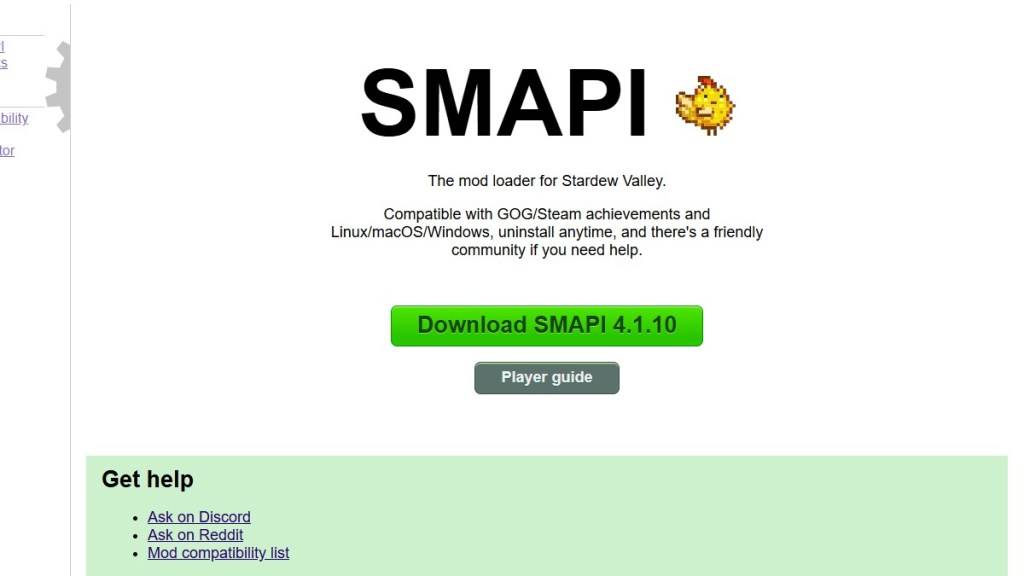 Image via SMAPI.io
After downloading SMAPI, extract the ZIP file to a convenient location on your computer, such as the desktop or downloads folder. Remember, SMAPI is not a mod itself but a mod loader designed to help you manage mods. Do not extract the file into the mod folder.
Once extracted, run SMAPI and select "install on Windows." Follow the on-screen prompts to complete the installation.
Step Three: Configure Your Game Client
If you're running *Stardew Valley* through game clients like Steam, GOG Galaxy, or Xbox App, you might need to take a few extra steps to ensure that your playtime tracking and achievements continue to work correctly. You can find detailed information on configuring your game client here.
Step Four: Installing Mods
Now comes the fun part—installing mods to enhance your *Stardew Valley* experience.
 Image via Nexus Mods
Nexus Mods is the go-to site for downloading *Stardew Valley* mods, offering a vast selection to keep players engaged. Mods are usually downloaded as ZIP files, which you'll need to extract. After extracting the file, move it into the Mods folder, which is automatically created during SMAPI installation. You can find the Mods folder in the following locations:
- Steam: C:\Program Files (x86)\Steam\steamapps\common\Stardew Valley
- GOG Galaxy: C:\Program Files (x86)\GOG Galaxy\Games\Stardew Valley
- Xbox App: C:\XboxGames\Stardew Valley
And that's how you can mod *Stardew Valley*. With over 1000 mods available on Nexus alone, there's plenty to keep both new and veteran players busy.
*Stardew Valley is available now*.
Latest News
more >-
-

- Universal Piece Trello and Wiki Links
- Oct 22,2026
-
-

-