Monster Hunter Wilds: Guide to Using and Muting Voice Chat
- By Lillian
- May 27,2025
In *Monster Hunter Wilds*, engaging in multiplayer doesn't necessarily mean you have to use voice chat, but if you're interested in using the in-game feature instead of external apps like Discord, here's how you can set it up or mute it.
How to Use and Mute Voice Chat in Monster Hunter Wilds
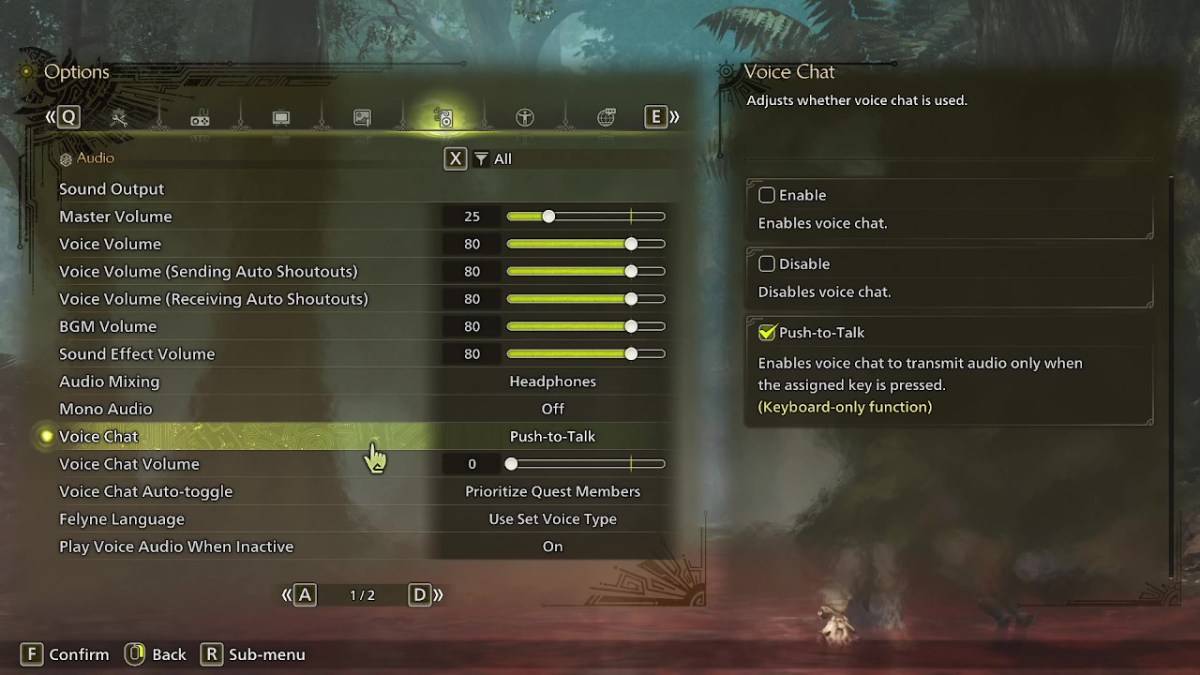
All voice chat settings are located in the audio section of the menu. Navigate to the options, accessible either in-game or from the main menu screen, and select the tab third from the right. Scroll down slightly to find the Voice Chat setting, which offers three options: enable, disable, and push-to-talk. Enable keeps voice chat active continuously, disable turns it off completely, and push-to-talk requires you to press a button on your keyboard to activate it, though this feature is exclusive to keyboard users.
Additional settings include voice chat volume, allowing you to adjust how loudly you hear others, and voice chat auto-toggle. The auto-toggle feature can be set to prioritize voice chat from quest members, link party members, or remain static. Quest members are those you're actively playing with, which is likely the most used setting. Link members refer to those in your link party, useful when guiding someone through the game's story, as you may need to wait for them to progress through cutscenes.
That covers everything about voice chat in *Monster Hunter Wilds*. While the audio quality may not match that of dedicated apps, having an in-game option is beneficial, especially for cross-platform play.
Latest News
more >-
-

- Universal Piece Trello and Wiki Links
- Oct 22,2026
-

-
-