Optimize Headshots with Ease in Free Fire
- By Isabella
- Feb 19,2025
Mastering Headshots in Free Fire: A Comprehensive Guide
Free Fire's fast-paced action demands precision, and headshots are the key to victory. This guide explores optimizing settings and utilizing tools to significantly improve your headshot accuracy.
Understanding Headshots
A well-placed headshot instantly eliminates opponents, providing a crucial advantage. Achieving consistent headshots requires a combination of precise settings, effective techniques, and dedicated practice. Sensitivity settings are paramount, directly impacting your aiming speed and accuracy. Proper configuration enhances tracking and allows for quicker target acquisition.
Optimizing Sensitivity for Headshots
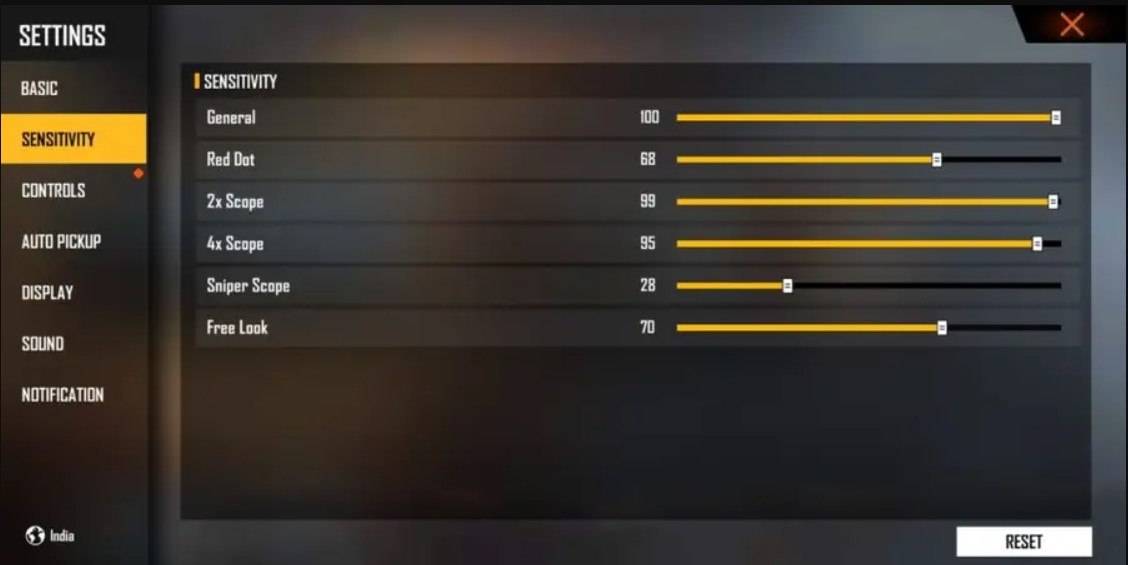
The image above showcases recommended sensitivity settings. Key adjustments include: Default Aim Precision, Always-On Left Fire Button, disabled Reload Progress on Crosshair, enabled Hold Fire to Scope, Double Grenade Slot, Two-Handed Vehicle Controls, enabled Auto-parachute and Quick Weapon Switch, disabled Quick Reload, Classic Run Mode, and enabled Free Look.
Refining Your HUD Layout
Your Heads-Up Display (HUD) layout significantly impacts control and responsiveness. A personalized setup tailored to your playstyle is essential.
- Fire Button Placement: Position the fire button for easy thumb access, considering three- or four-finger claw setups for enhanced control.
- Drag Shooting: Enable drag shooting with a fire button size between 50-70% for precise swiping.
- Quick Weapon Switch: Place the weapon switch button near your thumb for rapid weapon changes.
- Crouch/Jump Buttons: Position these near movement controls for seamless execution of crouch + shoot and jump + shoot techniques.
- Scope Button: Keep the scope button easily accessible for quick aiming and headshot alignment.
Leveraging BlueStacks for Enhanced Accuracy
While mobile devices offer portability, larger screens provide superior aiming precision. BlueStacks offers several advantages:
- Keyboard and Mouse Support: Map controls to your keyboard and mouse for greater accuracy and ease of aiming than touch controls.
- Customizable Key Mapping: Customize controls to your preferences, assigning the fire button to the mouse for smoother drag shots.
- Enhanced Graphics and Performance: Experience smoother gameplay with higher graphics settings without lag or overheating.
- Improved Sensitivity Settings: Fine-tune sensitivity for better control over drag shots and scoped headshots.
BlueStacks empowers Free Fire players to enjoy the game on a larger screen with enhanced precision using keyboard and mouse. By combining optimized settings, refined HUD layouts, and the advantages of BlueStacks, you can significantly increase your headshot accuracy and dominate the Free Fire battlefield.
Latest News
more >-

- Universal Piece Trello and Wiki Links
- Oct 22,2026
-

-

-

-