"Splitgate 2: Optimize FPS and Visibility Settings"
- By Joseph
- Apr 22,2025
Anticipation is high for *Splitgate 2*, one of the most eagerly awaited games of 2025. Fans of the original are eager to dive into the sequel, although it's still in its Alpha phase. With the game far from completion, players might encounter crashes, frame drops, and other performance hiccups. But don't worry—optimizing your settings can help minimize these issues. Here are the best settings for *Splitgate 2* to ensure a high framerate and reduced input lag.
Related: What Is Splitgate 2’s Release Date?
Splitgate 2 System Requirements
Before diving into optimization, it's crucial to ensure your system meets the game's requirements. Fortunately, Splitgate 2 is designed to be accessible, with relatively modest hardware needs.
Minimum:
- Processor: Intel® Core™ i3-6100 / Core™ i5-2500K or AMD Ryzen™ 3 1200
- Memory: 8 GB RAM
- Graphics: NVIDIA® GeForce® GTX 960 or AMD Radeon™ RX 470
Recommended:
- Processor: Intel® Core™ i5-6600K / Core™ i7-4770 or AMD Ryzen™ 5 1400
- Memory: 12 GB RAM
- Graphics: NVIDIA® GeForce® GTX 1060 or AMD Radeon™ RX 580
Splitgate 2 Best Video Settings
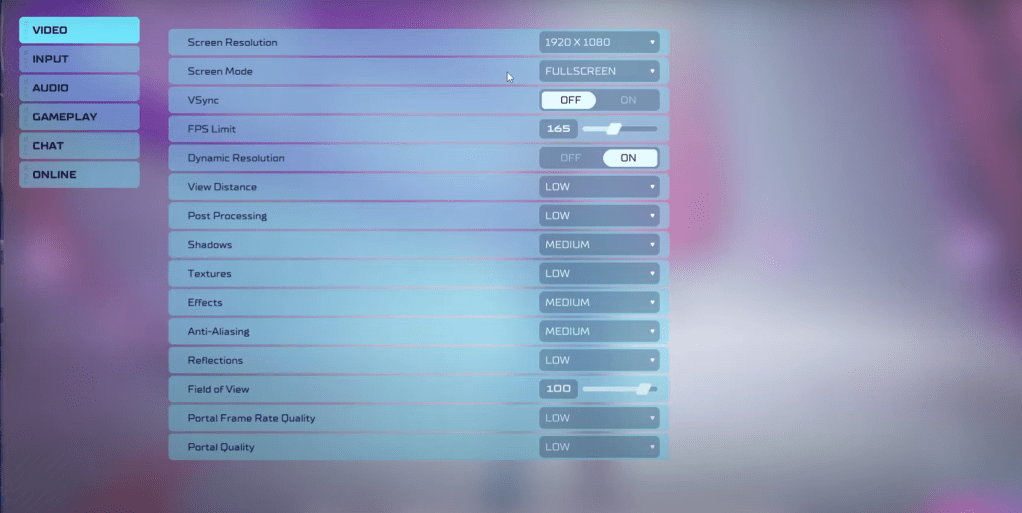
Splitgate 2 is a competitive multiplayer shooter, so prioritizing performance over visual quality is key. Here’s how to set your video settings to ensure the smoothest gameplay experience:
- Screen Resolution – Set to your monitor’s native resolution (1920×1080 is common).
- Screen Mode – Choose Borderless Fullscreen if you frequently Alt+Tab, otherwise opt for Fullscreen.
- VSync – Turn Off to avoid input lag.
- FPS Limit – Match your monitor’s refresh rate (e.g., 60, 144, 165, 240).
- Dynamic Resolution – Turn On, but experiment with Off as performance can vary.
- View Distance – Set to Low.
- Post Processing – Set to Low.
- Shadows – Medium is usually fine, but go Low on older systems.
- Effects – Set to Low.
- Anti-Aliasing – Start at Low, increase if you see shimmering.
- Reflection – Set to Low.
- Field of View (FOV) – Maximize for a competitive edge, though reducing by 3-4 can boost performance.
- Portal Frame Rate Quality – Low.
- Portal Quality – Low.
In essence, most settings should be on the lowest option to prioritize performance. If the visuals seem too compromised, you might bump up Effects and Anti-aliasing, as they have a relatively minor impact on performance.
The Field of View setting can significantly affect framerate. While maxing out FOV gives you more visual information, crucial in a competitive shooter, lowering it slightly can help maintain smoother gameplay.
Other Recommended Settings for Splitgate 2
While not directly impacting FPS, these additional settings can enhance your overall experience:
- Sensitivity Settings – Adjust to your preference or convert from other shooters using an online calculator.
- Audio Settings – Lower the in-game music to reduce distractions. Enable Spatial Sound in Windows settings for better directional audio cues, a useful tip for any game.
That’s a wrap on the best settings for Splitgate 2. By fine-tuning these, you’ll be ready to enjoy the game at its best during its Alpha phase.
Related: 10 of the Most Fun Games to Play With Friends
Latest News
more >-

- Universal Piece Trello and Wiki Links
- Oct 22,2026
-

-

-

-