Why Call of Duty: Black Ops 6 Looks Grainy & Blurry
- By Lillian
- Mar 04,2025
Troubleshooting Grainy and Blurry Graphics in Call of Duty: Black Ops 6
Call of Duty fans expect top-tier visuals. However, Black Ops 6 can sometimes fall short, impacting gameplay and immersion. This guide helps resolve graininess and blurriness issues.
Why the Grain and Blur?
If your Black Ops 6 visuals are subpar despite optimal hardware settings, in-game settings are the likely culprit. Updates can sometimes reset options to defaults. Key settings reside within the Graphics menu's Display, Quality, and View tabs. The Quality tab holds the most crucial adjustments.
Disabling Blur Effects
Motion Blur and Depth of Field, while enhancing cinematic feel, can hinder clarity in fast-paced games like Black Ops 6. To disable them:
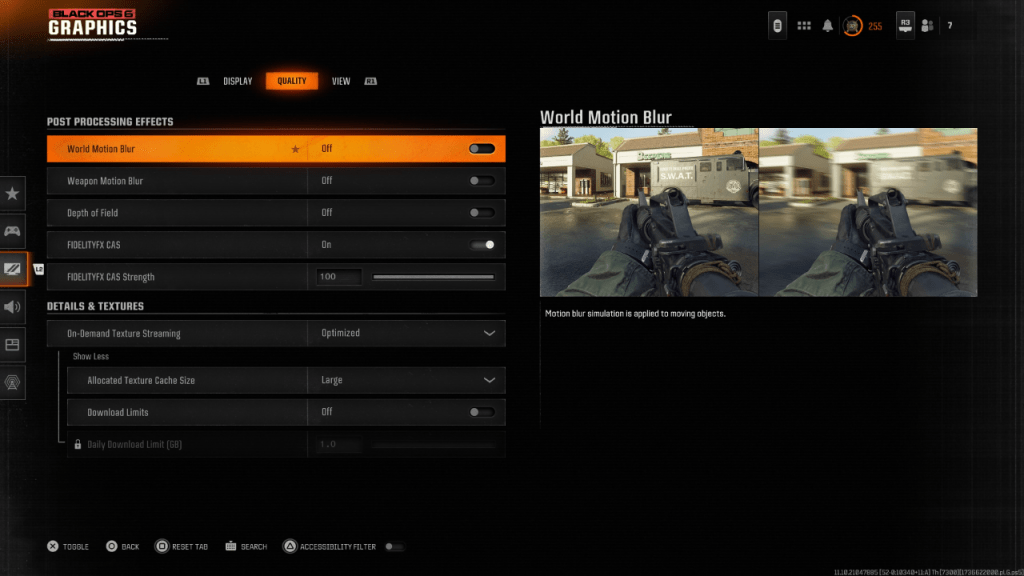
- Navigate to the Graphics settings, then the Quality tab.
- Locate "Post Processing Effects."
- Set "World Motion Blur," "Weapon Motion Blur," and "Depth of Field" to "Off."
Improving Clarity and Sharpness
Even after disabling blur, image quality might still be lacking. Incorrect gamma and brightness settings can be to blame.
- Go to the Display tab in the Graphics settings.
- Adjust the Gamma/Brightness slider until the Call of Duty logo is barely visible (a value around 50 often works well, but adjust to your screen).
- In the Quality tab, enable "FIDELITYFX CAS" (AMD FidelityFX Contrast Adaptive Sharpening). Set the strength to 100 for maximum sharpness.
Optimizing Textures and Details
Black Ops 6's On-Demand Texture Streaming, while saving storage space, can compromise image quality. For optimal visuals:
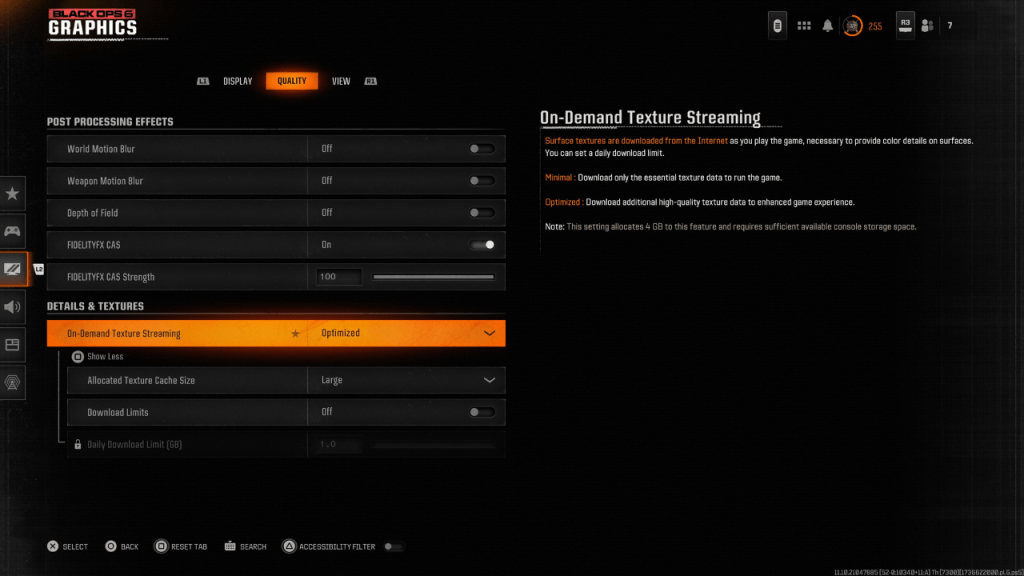
- Access the Details & Textures settings under the Quality tab.
- Set "On-Demand Texture Streaming" to "Optimized."
- Click "Show More" to reveal additional options.
- Set "Allocated Texture Cache Size" to "Large."
- Consider disabling "Download Limits" if your internet plan allows.
By following these steps, you can significantly improve the visual fidelity of Call of Duty: Black Ops 6, eliminating graininess and blurriness for a more enjoyable gaming experience.
Latest News
more >-
-

- Universal Piece Trello and Wiki Links
- Oct 22,2026
-

-

-