How to Enhance Gaming on Steam Deck: Emulating Game Boy
- By Mia
- Feb 11,2025
This guide details how to install EmuDeck and play Game Boy games on your Steam Deck, optimizing performance with Decky Loader and Power Tools. The Steam Deck's versatility allows for retro gaming, enhancing classic Game Boy titles with a larger screen and customizable settings.
Before You Begin:
 Ensure you have:
- A fully charged Steam Deck.
- An A2 microSD card for game storage.
- Legally obtained Game Boy ROMs.
- A Bluetooth or wired keyboard and mouse (recommended for easier navigation).
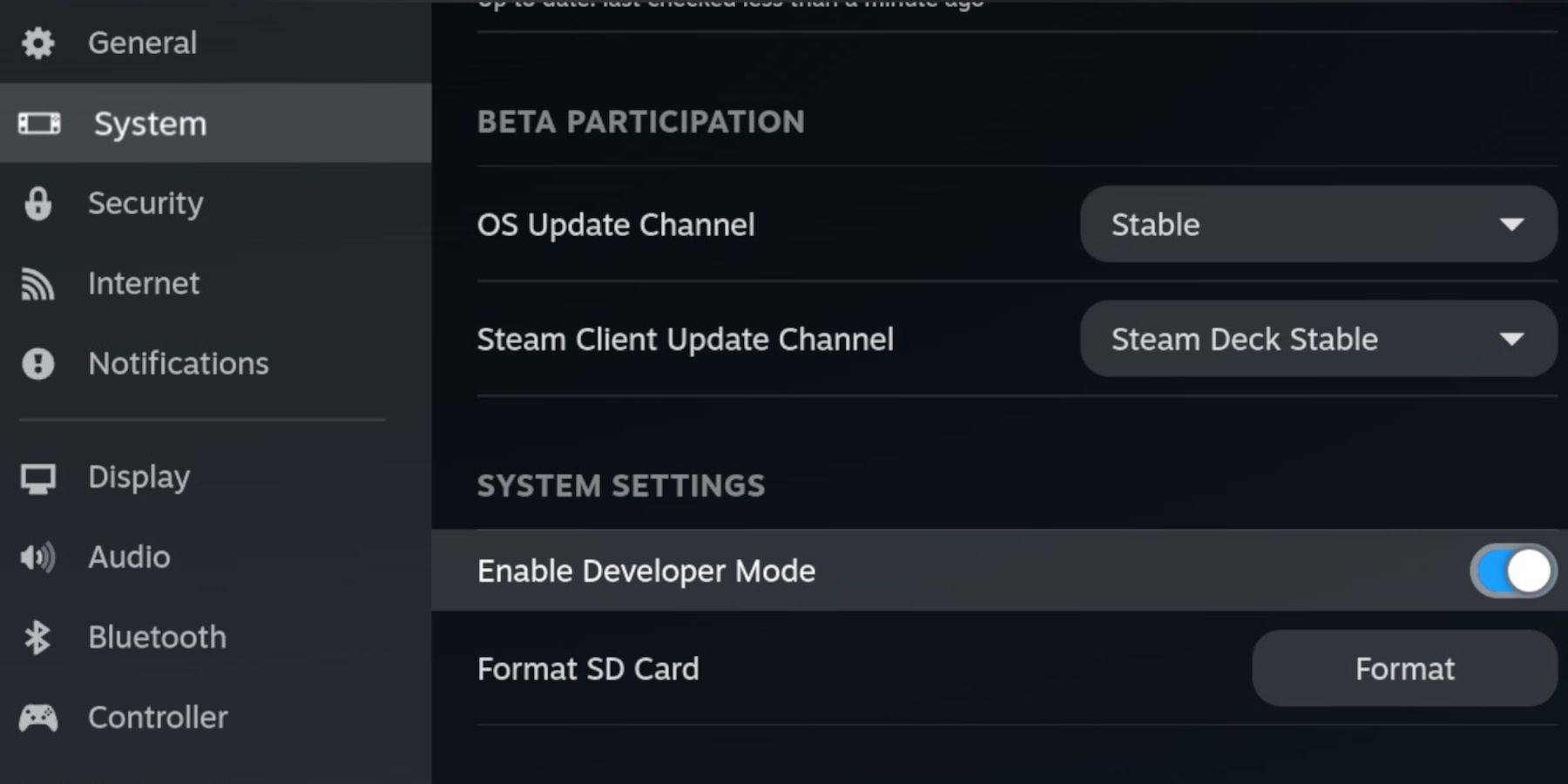
Enable Developer Mode:
- Press the Steam button.
- Navigate to System > Developer Mode and enable it.
- Enable CEF Debugging in the Developer menu.
- Switch to Desktop Mode.
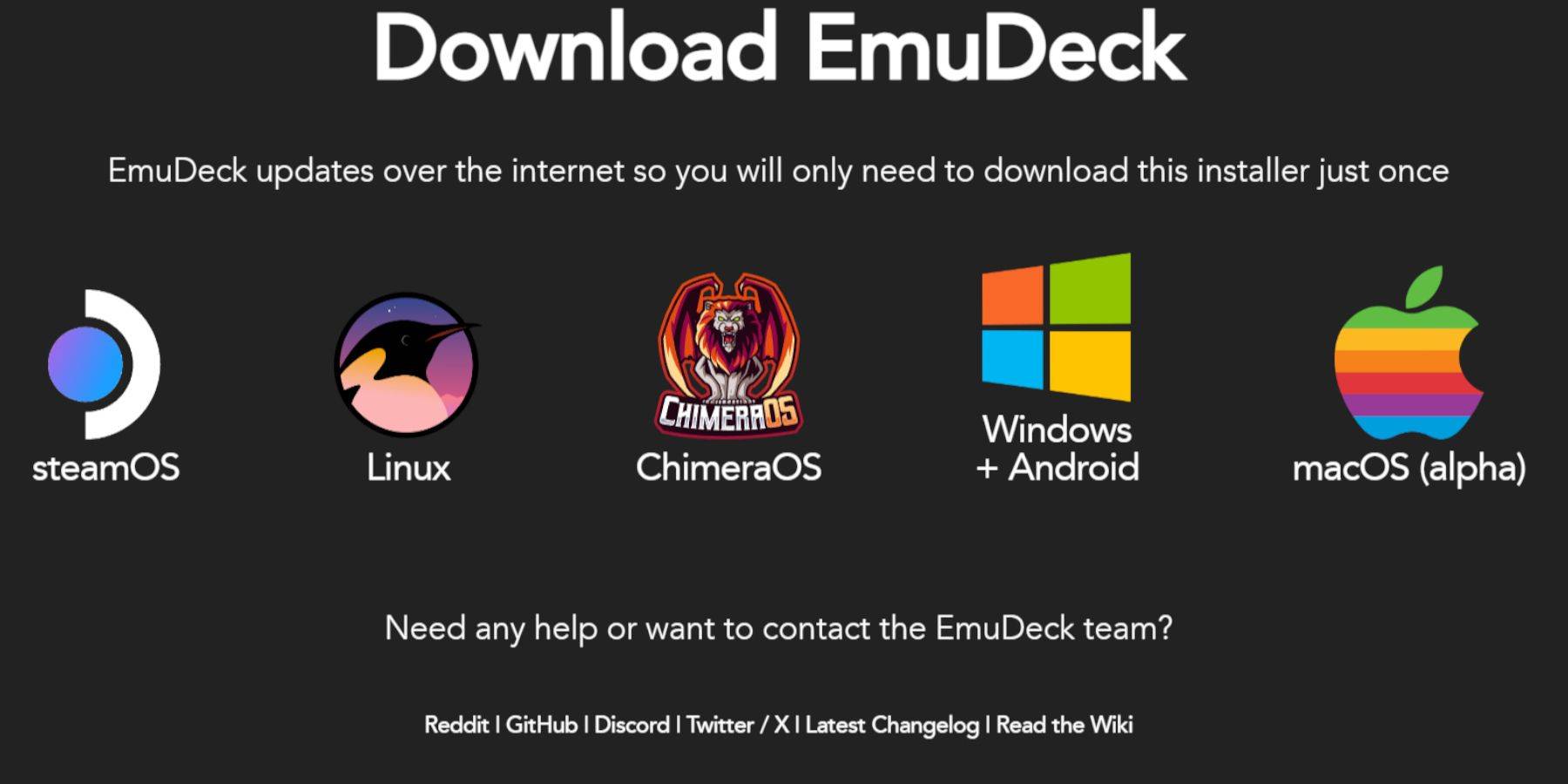
Install EmuDeck:
- Connect your keyboard and mouse.
- Download EmuDeck from the official website using a browser like Firefox or DuckDuckGo.
- Choose SteamOS and select "Download for Free".
- Opt for "Recommended Settings" then "Custom Install".
- Select your SD card as the Primary installation location.
- Choose your desired emulators (RetroArch, Emulation Station, Steam ROM Manager are recommended).
- Enable Auto Save.
- Complete the installation.
Quick Settings (EmuDeck):
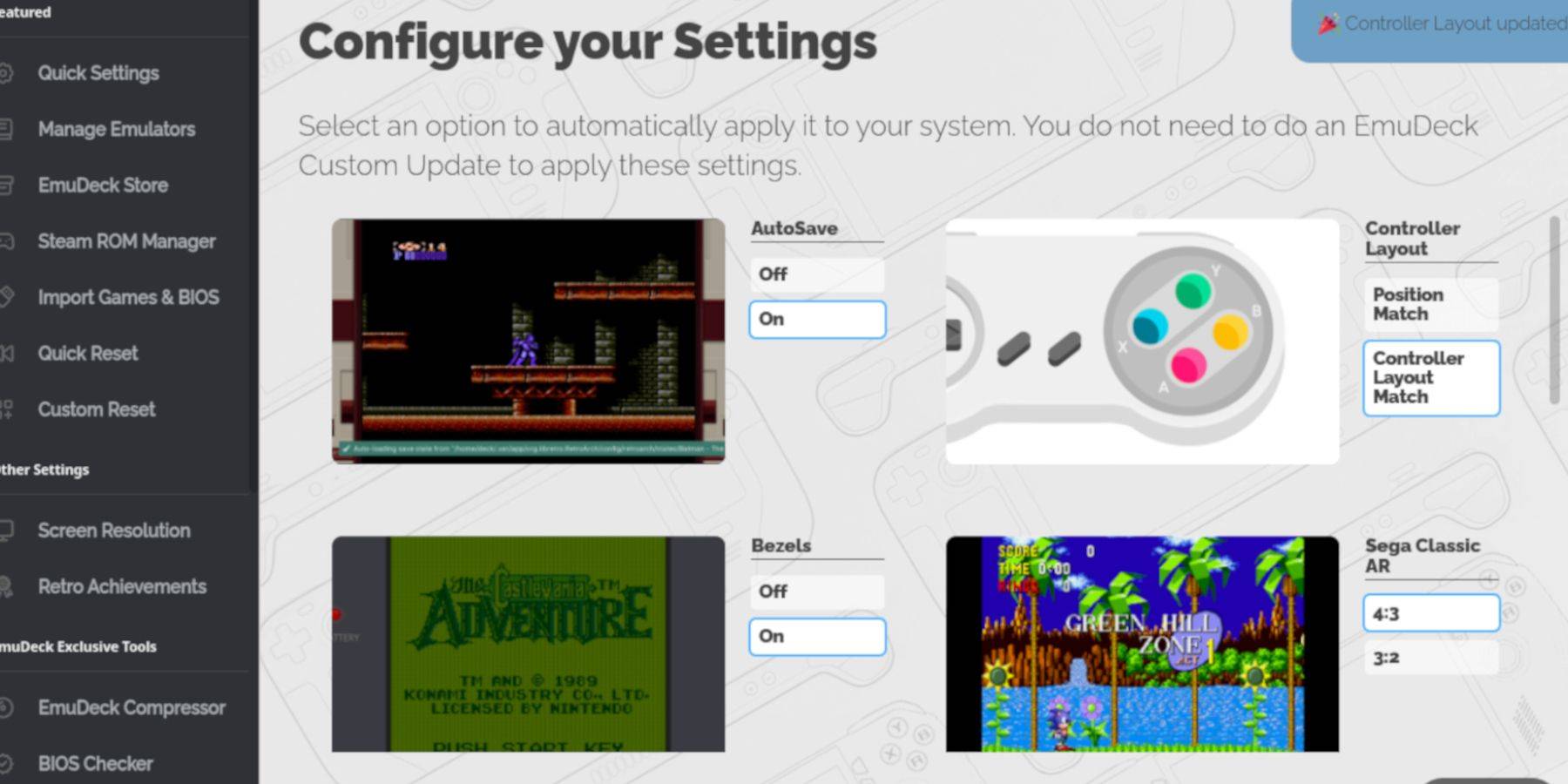
- Open EmuDeck and select Quick Settings.
- Turn on AutoSave, Controller Layout Match, Bezels, Nintendo Classic AR, and LCD Handhelds.
Adding Game Boy Games:
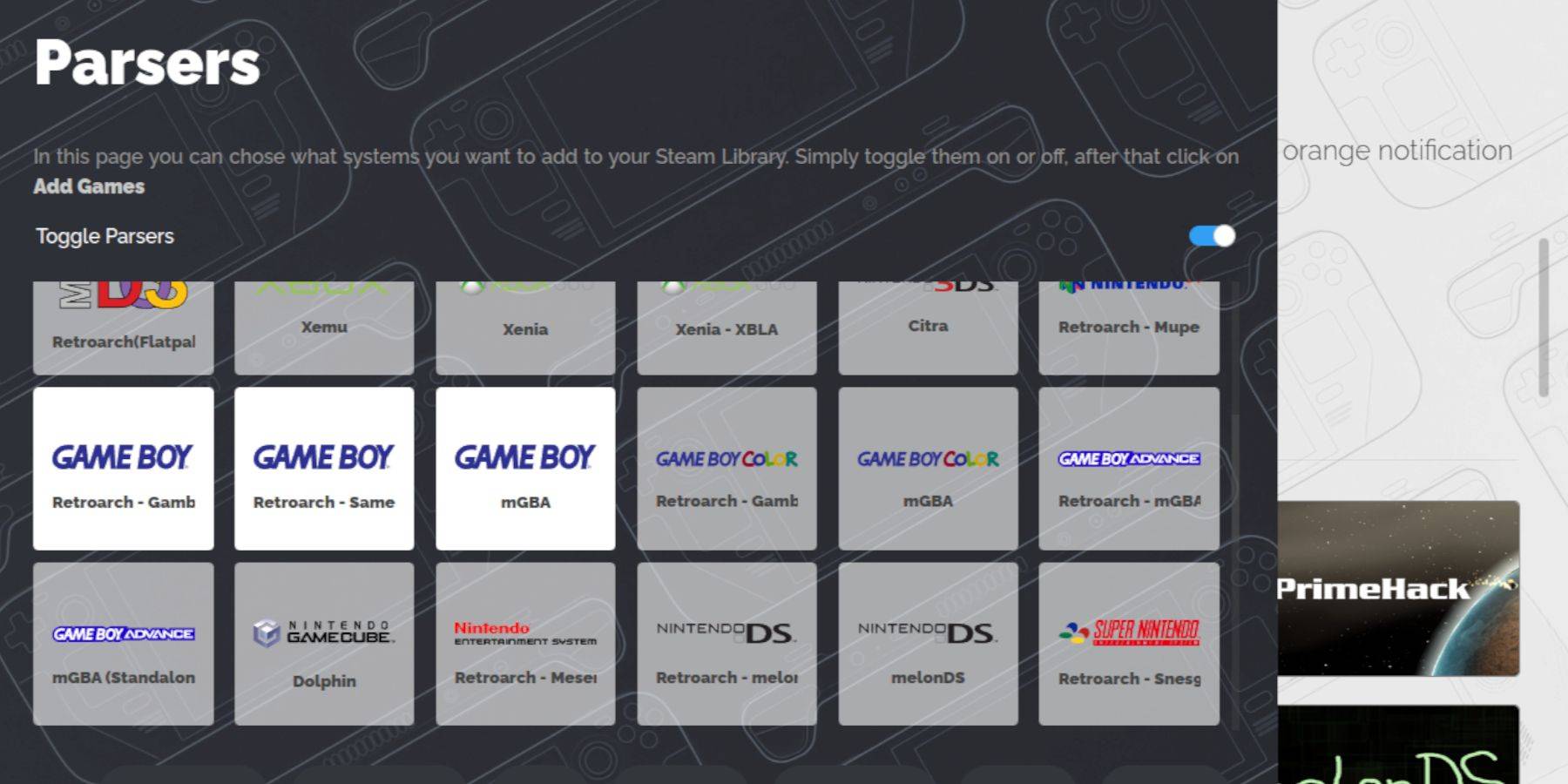
- Use Dolphin File Manager to access your SD card (Primary > Emulation > ROMS > gb).
- Transfer your .gb ROMs to the
gbfolder, ensuring correct filenames.
Steam ROM Manager Integration:
- Open EmuDeck and select Steam ROM Manager.
- Close the Steam client if prompted.
- Disable Toggle Parsers.
- Add your Game Boy games.
- Save to Steam.
Playing Game Boy Games:
- Access your Steam Library.
- Go to the Collections tab.
- Select your Game Boy collection and launch a game.
Customizing Game Colors (RetroArch):
While not all games support it, you can adjust colors within RetroArch:
- Launch a game.
- Open the RetroArch menu (Select + Y buttons).
- Navigate to Core Options > GB Colorization.
- Toggle Auto or Off for color adjustments.
Using Emulation Station:
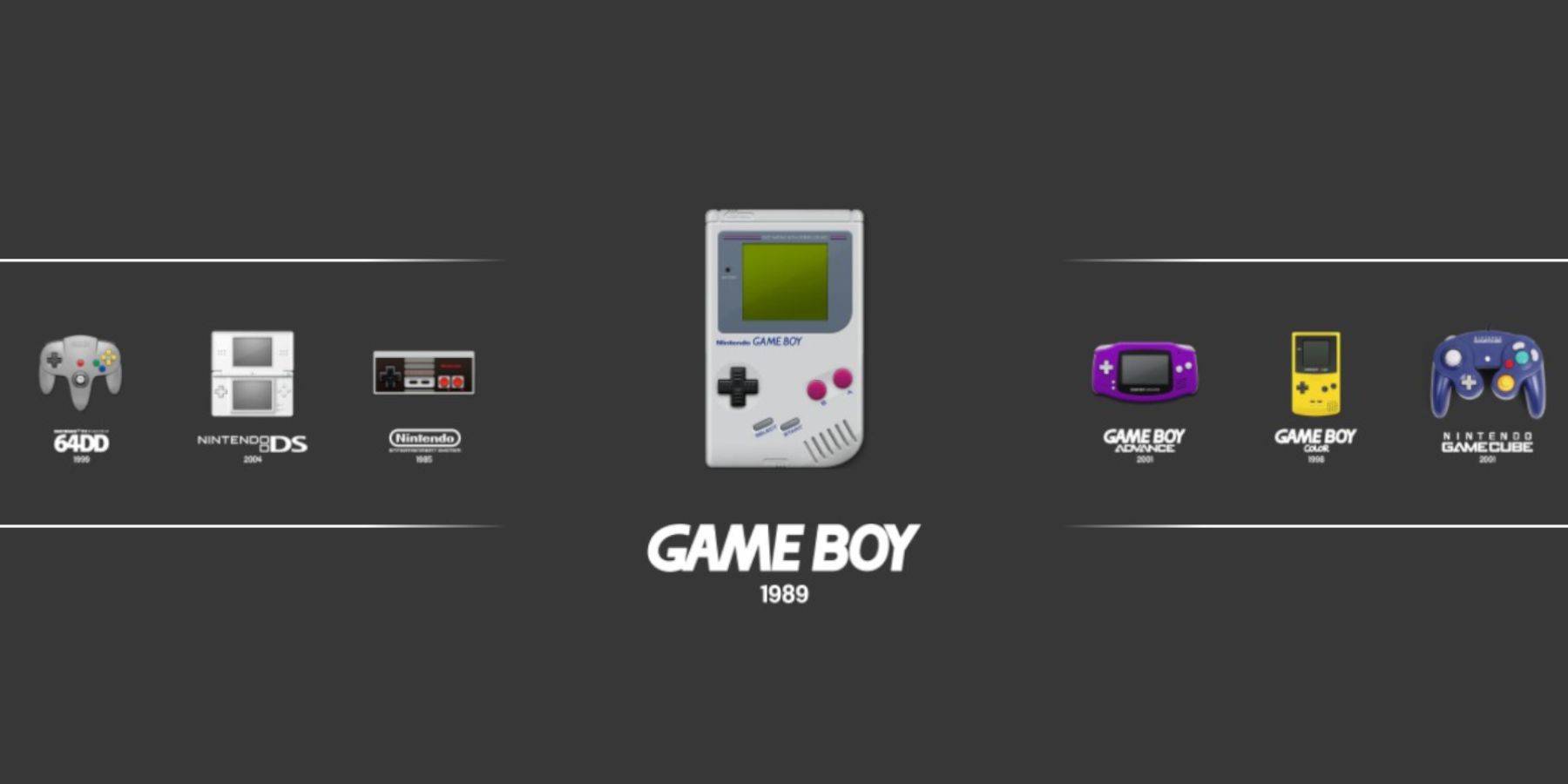
- Access your Steam Library > Collections > Emulators > Emulation Station.
- Select the Game Boy icon and launch your games.
Install Decky Loader:
- Switch to Desktop Mode.
- Download Decky Loader from its GitHub page.
- Run the installer and choose Recommended Install.
- Restart your Steam Deck.
Install Power Tools Plugin:
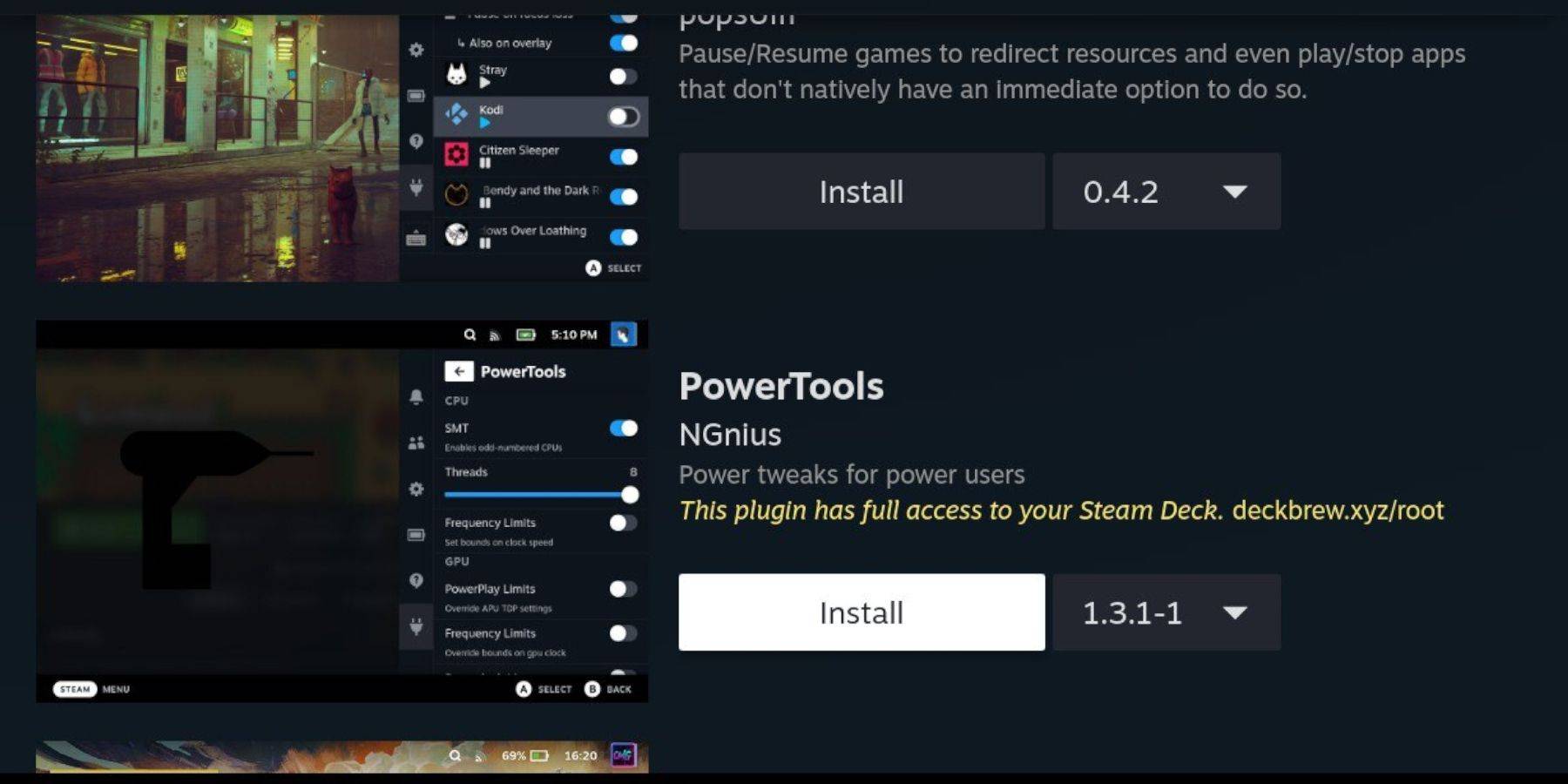
- Access the Decky Loader store through the Quick Access Menu (QAM).
- Search for and install the Power Tools plugin.
Power Tools Settings:
- Launch a Game Boy game.
- Open Power Tools via QAM.
- Turn off SMTs.
- Set Threads to 4.
- Open the Performance menu, enable Advanced View, Manual GPU Clock Control, and set GPU Clock Frequency to 1200.
- Use Per Game Profile to save settings.
Restoring Decky Loader After a Steam Deck Update:
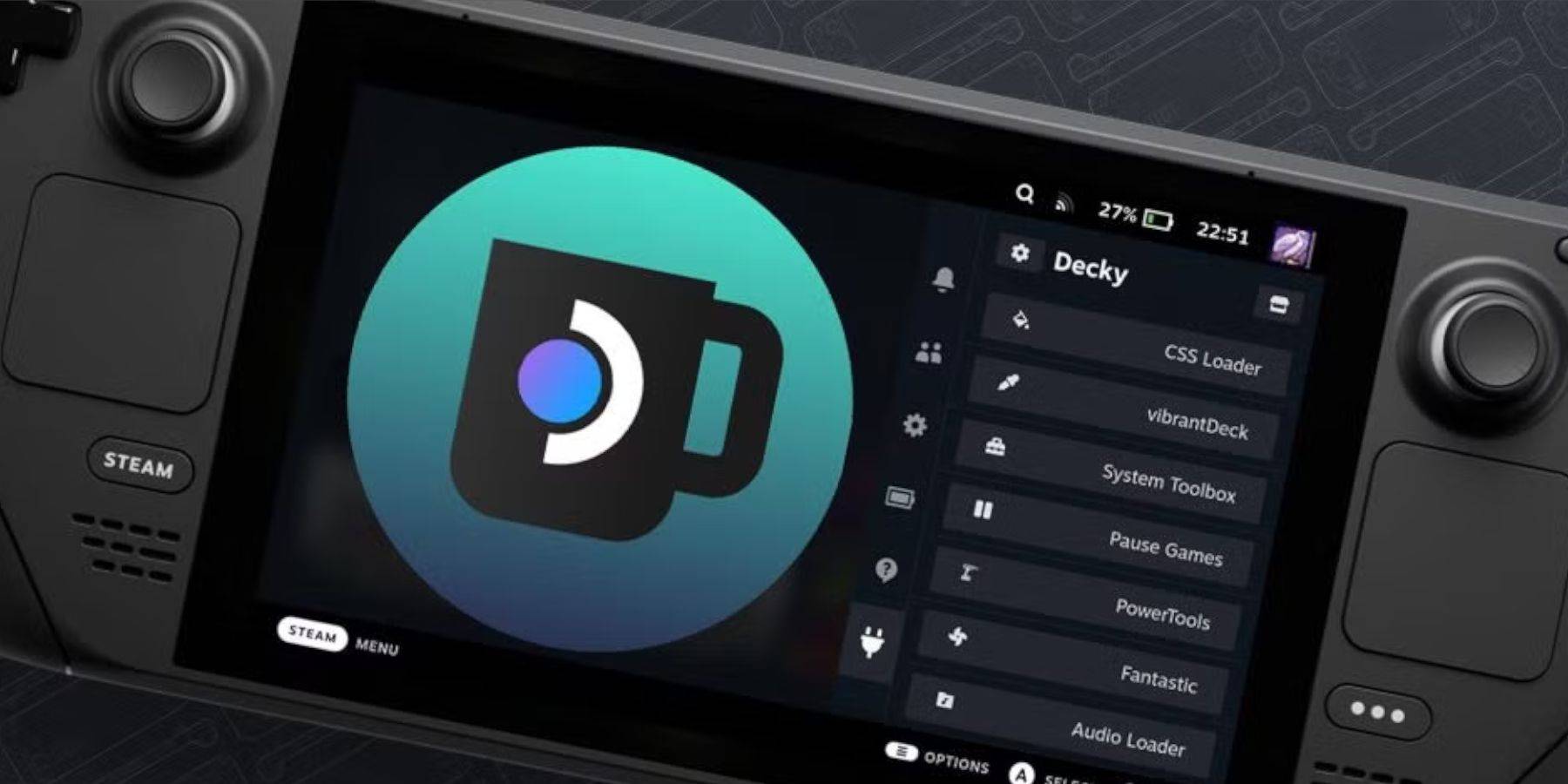
- Switch to Desktop Mode.
- Re-download and reinstall Decky Loader from its GitHub page.
- Restart your Steam Deck.
 Enjoy your enhanced Game Boy experience on your Steam Deck! Remember to always obtain ROMs legally.
Latest News
more >-
-

- Universal Piece Trello and Wiki Links
- Oct 22,2026
-

-

-