"Connect PlayStation VR2 to PC: Easy Steps"
- By Brooklyn
- Apr 28,2025
If you've been eagerly waiting to use your PlayStation VR2 headset with a gaming PC to explore the rich world of SteamVR games, your options were previously limited. However, Sony has now provided a solution with the release of a $60 adapter last fall, enabling PS VR2 owners to connect their headset to any modern gaming PC that meets the minimum specifications. Although marketed as a plug-and-play device, setting up the PS VR2 with a PC involves more than just plugging in the adapter; certain features may require additional configuration depending on your PC setup.
How to Connect to Your PC With the Adapter
Before diving into the setup process, ensure you have all the necessary components. The PS VR2, when connected via the adapter, is compatible with most SteamVR games, but you'll need to verify your PC has Bluetooth 4.0 connectivity, a DisplayPort 1.4 cable, a nearby AC power outlet, and both the PlayStation VR2 and SteamVR apps installed on Steam. The Sense controllers that come with the PS VR2 charge via USB-C, requiring two USB-C ports and cables. Alternatively, you can opt for the $50 Sense controller charging station available on Sony's website for a more convenient charging solution.
What You'll Need
Back in Stock
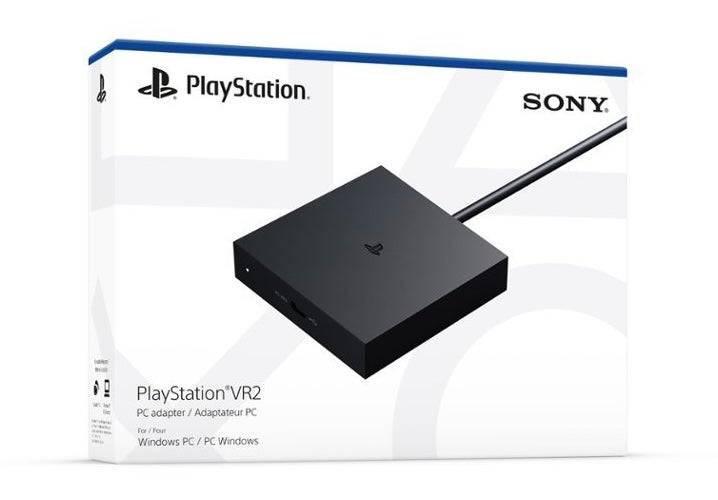
PlayStation VR2 PC Adapter
See it at Amazon
First, check if your gaming PC is compatible with the PlayStation VR2 headset by visiting Sony's official PS VR2 PC Adapter preparation page. Once confirmed, gather these items:
- A PlayStation VR2 headset
- The PlayStation VR2 PC adapter (AC adapter and male USB 3.0 Type-A cable included)
- A DisplayPort 1.4 cable (sold separately)
- A free USB 3.0 Type-A port on your PC (Sony advises against using extension cables or external hubs, though a powered external hub worked well in our testing)
- Bluetooth 4.0 capability on your PC (built-in or via an external Bluetooth adapter)
- Steam and SteamVR installed on your PC
- The PlayStation VR2 app installed inside of Steam
How to Connect: Step-by-Step Instructions
Once you've gathered all the necessary items, follow these steps to connect your PS VR2 to your PC:
- Install SteamVR and the PlayStation VR2 app: Download and install the Steam Windows client if you haven't already. Then, install the SteamVR app and the PlayStation VR2 app within Steam.
- Set up your PC’s Bluetooth and pair your Sense Controllers: Go to your PC’s start menu, navigate to Settings > Bluetooth & devices, and turn Bluetooth on. Pair your Sense controllers by holding down the PlayStation button and Create button until the white light at the bottom starts to blink. Add them to your PC via the "Add device" button under Bluetooth & devices. If your PC lacks built-in Bluetooth 4.0, use a compatible adapter like the Asus BT500. If you're using an external adapter alongside a built-in Bluetooth radio, disable the internal driver in Device Manager.
- Set up the adapter and connect it to your PC: Plug the PS VR2 adapter into an unused USB 3.0 Type-A port on your PC. Connect the adapter to a free DisplayPort slot on your GPU using a DisplayPort 1.4 cable. Attach the AC power adapter to the PS VR2 adapter’s DC IN connector and plug it into an electrical outlet. Connect the PlayStation VR2 to the PC adapter via the USB-C port on the front of the adapter.
- Turn off Hardware-accelerated GPU scheduling (optional): If your PC has a newer GPU like a 40-series Nvidia RTX card, you might need to disable Hardware-accelerated GPU scheduling for stability in VR games. Go to Settings > System > Display > Graphics, click "Default graphics settings," and turn off the "Hardware-accelerated GPU scheduling" slider. Restart your PC.
- Launch the PlayStation VR2 App and SteamVR: Power on the PlayStation VR2 headset by holding down the central button under the visor until it rumbles. Launch SteamVR and set it as your default OpenXR runtime. Open the PlayStation VR2 app on your desktop to update your Sense controllers’ firmware and set up your PS VR2 headset, including your Play Area and other preferences. Follow the on-screen and in-headset instructions to adjust your IPD, display distance, and fit the headset comfortably. Once set up, you're ready to enjoy SteamVR games!
Can You Connect to PC Without an Adapter?
Currently, connecting the PS VR2 to a PC without an adapter isn't straightforward. The short answer is no. However, a Road to VR report suggests that some GPUs from around 2018 with a USB-C port and VirtualLink feature might allow a direct connection, provided the PlayStation VR2 app is installed. This method bypasses the need for the PC adapter, but it's not universally applicable.