Path of Exile 2: How to Use FilterBlade
- By Nathan
- Mar 30,2025
Quick Links
For anyone diving into the endgame of Path of Exile 2, a well-suited loot filter isn't just a luxury—it's a necessity. Loot filters drastically cut down on-screen clutter, making mapping not only bearable but also more efficient. By highlighting only the items that truly matter, they free you from the mental gymnastics of sorting through countless irrelevant drops.
FilterBlade, renowned for its effectiveness in Path of Exile 1, has now been updated to support PoE 2 as well. Here's how to get started with it.
How to Set Up FilterBlade Loot Filters in Path of Exile 2
- Navigate to the FilterBlade Website: Open your browser and head over to the FilterBlade website.
- Select PoE 2: When prompted, choose Path of Exile 2.
- Choose the Default Filter: The NeverSink filter will be selected by default.
- Adjust Strictness Level: Use the slider to set your desired Strictness level (more details on this below).
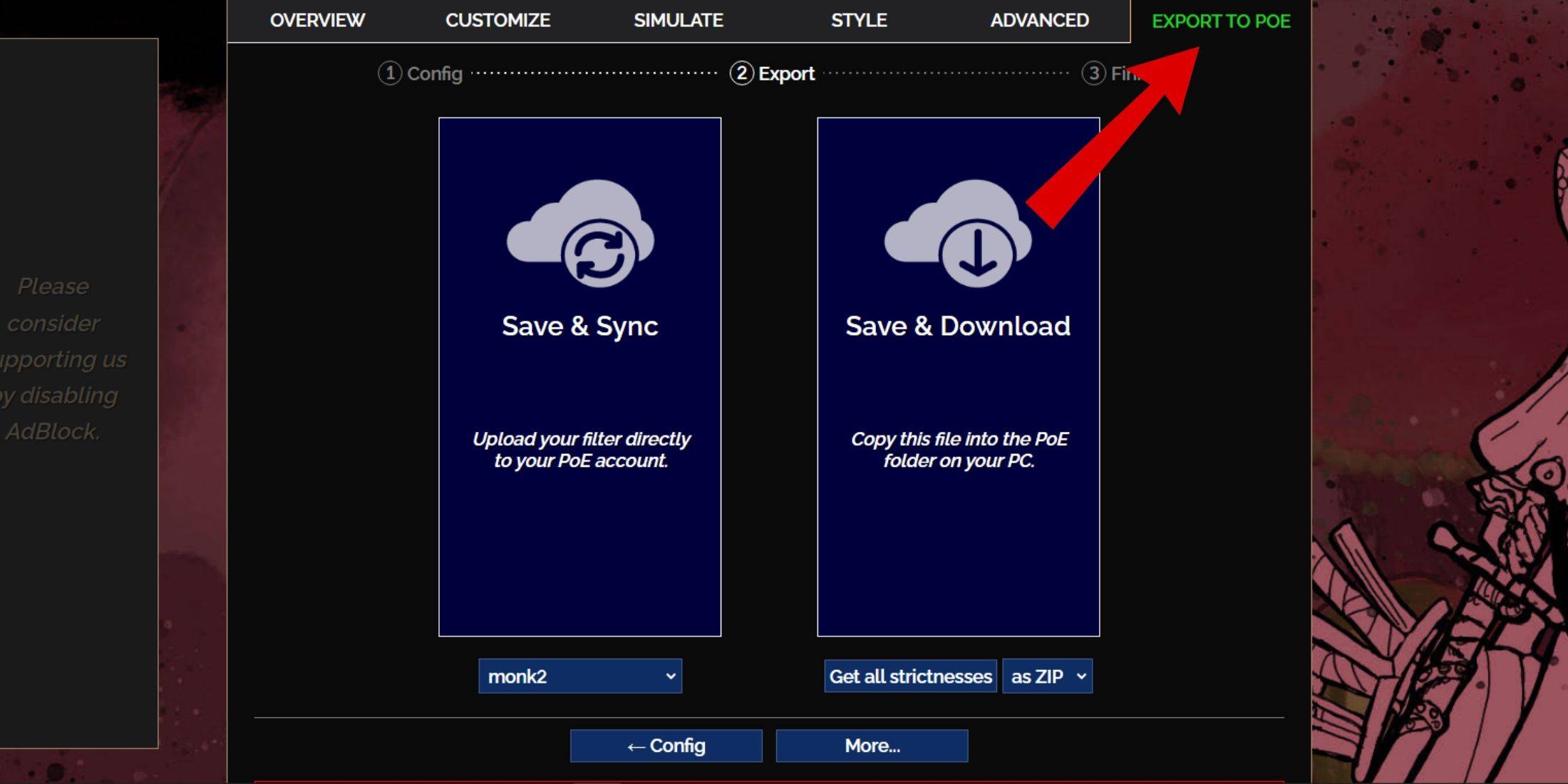
- Export Your Filter: Click on the "Export to PoE" tab at the top right.
- Name Your Filter: Enter any name you prefer for your filter.
- Sync or Download:
- Save & Sync: This option automatically syncs the FilterBlade loot filter to your PoE 2 account. It ensures that any updates from the filter author are directly applied to your game.
- Save & Download: This downloads the filter file to your PC, allowing you to compare different Strictness levels without needing to resync multiple times, which is particularly useful at the start of a new campaign.
- Apply the Filter in PoE 2: Launch PoE 2, go to Options > Game.
- If you chose Sync, select the newly added FilterBlade from the Item Filter dropdown.
- If you chose Download, click the folder icon next to the dropdown and navigate to your downloaded filter.
And just like that, your FilterBlade loot filter is ready to enhance your gameplay experience.
Which Loot Filter Strictness Should You Choose?
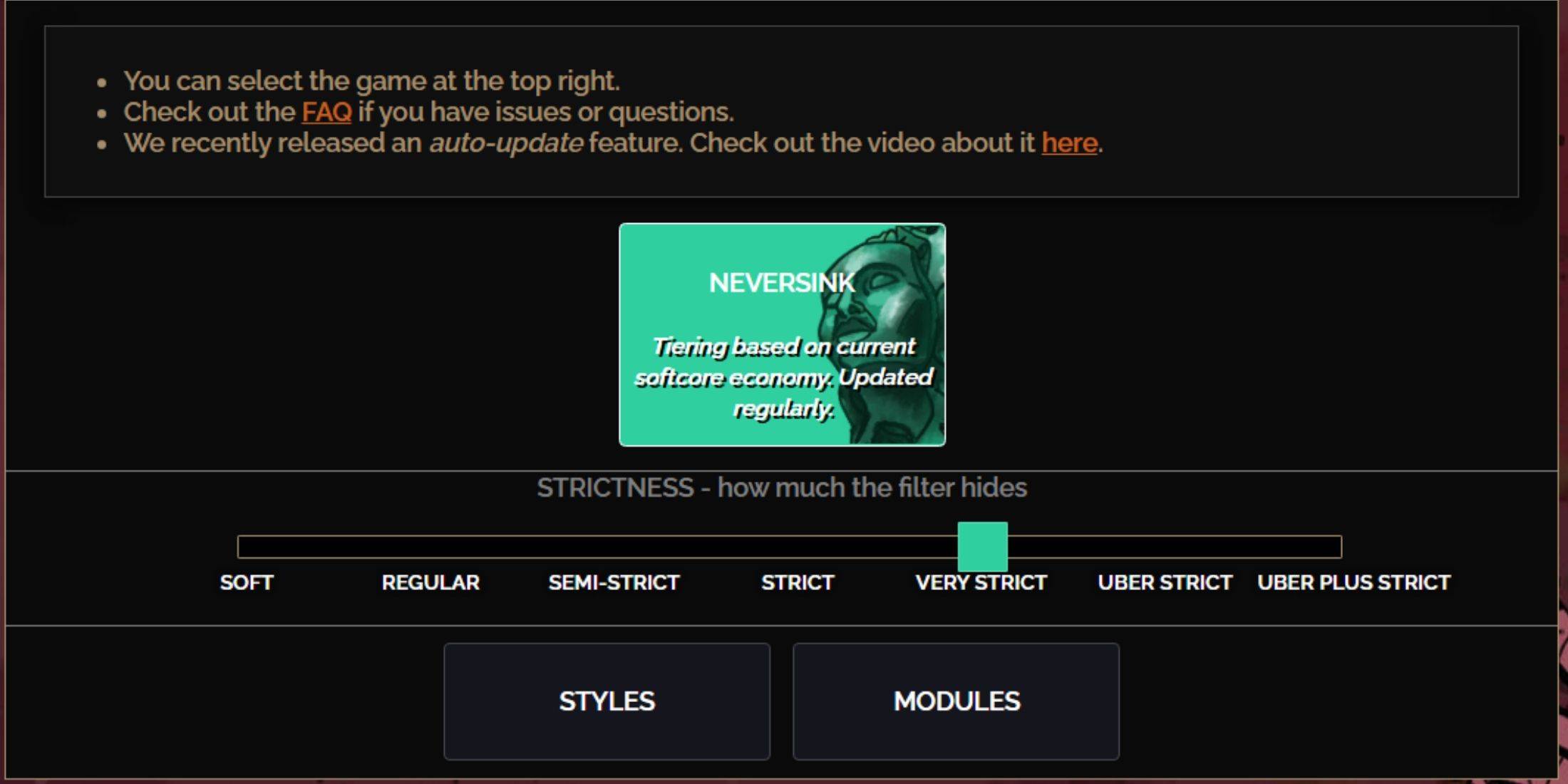
Selecting the right strictness level for the NeverSink FilterBlade preset is crucial, as it determines what items you'll see in-game. Here's a breakdown of the seven strictness levels:
| Strictness | Effect | Best For |
|---|---|---|
| Soft | Highlights valuable materials and items. Doesn't hide anything. | Act 1-2 |
| Regular | Hides only useless items with no crafting potential or sale value. | Act 3 |
| Semi-Strict | Hides items with low potential or limited value. | Act 4-6 |
| Strict | Hides most items without high turnover. | Early Mapping phase (Waystone Tier 1-6) |
| Very Strict | Hides low-value rare items and crafting bases. Also hides Waystone Tier 1-6. | Mid to late mapping phase (Waystone Tier 7+) |
| Uber Strict | Hides almost all non-tiered rare items and crafting bases. Highlights complete currency like Regal/Alchemy/Exalted/Chaos Orbs, no shards. Also hides Waystones Tier 1-13. | Late mapping phase (Waystone Tier 14+) |
| Uber Plus Strict | Hides almost everything except valuable currencies and high return rares and uniques. Also hides Waystones Tiers 1-14. | Ultra endgame mapping phase (Waystone Tier 15-18) |
For players embarking on a second or third campaign run, starting with the Semi-Strict level is advisable. The Soft and Regular levels are ideal for fresh league starts where every item contributes to character progression, akin to a Solo Self-Found (SSF) run.
Remember, items hidden by the loot filter can still be viewed by pressing the highlight key (ALT on PC). FilterBlade's unique feature is that, depending on your chosen strictness level, pressing ALT will reveal these items, but their names will be minimized to the point of near-invisibility, enhancing the efficiency of item pickup.
How to Customize FilterBlade Loot Filter in PoE 2
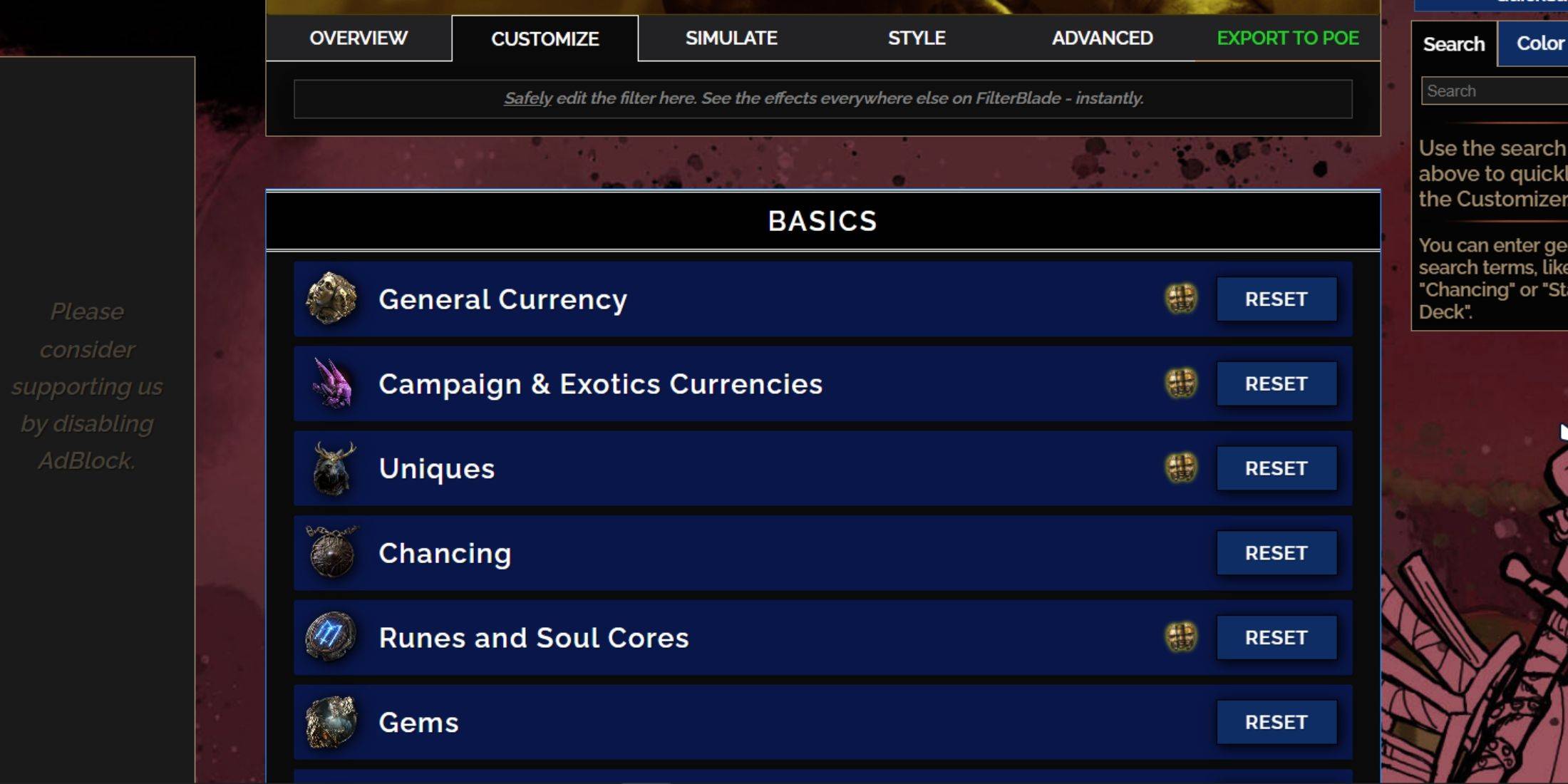
FilterBlade stands out due to its user-friendly customization options, allowing you to tweak preset loot filters without delving into complex code.
How to Use the Customize Tab in FilterBlade
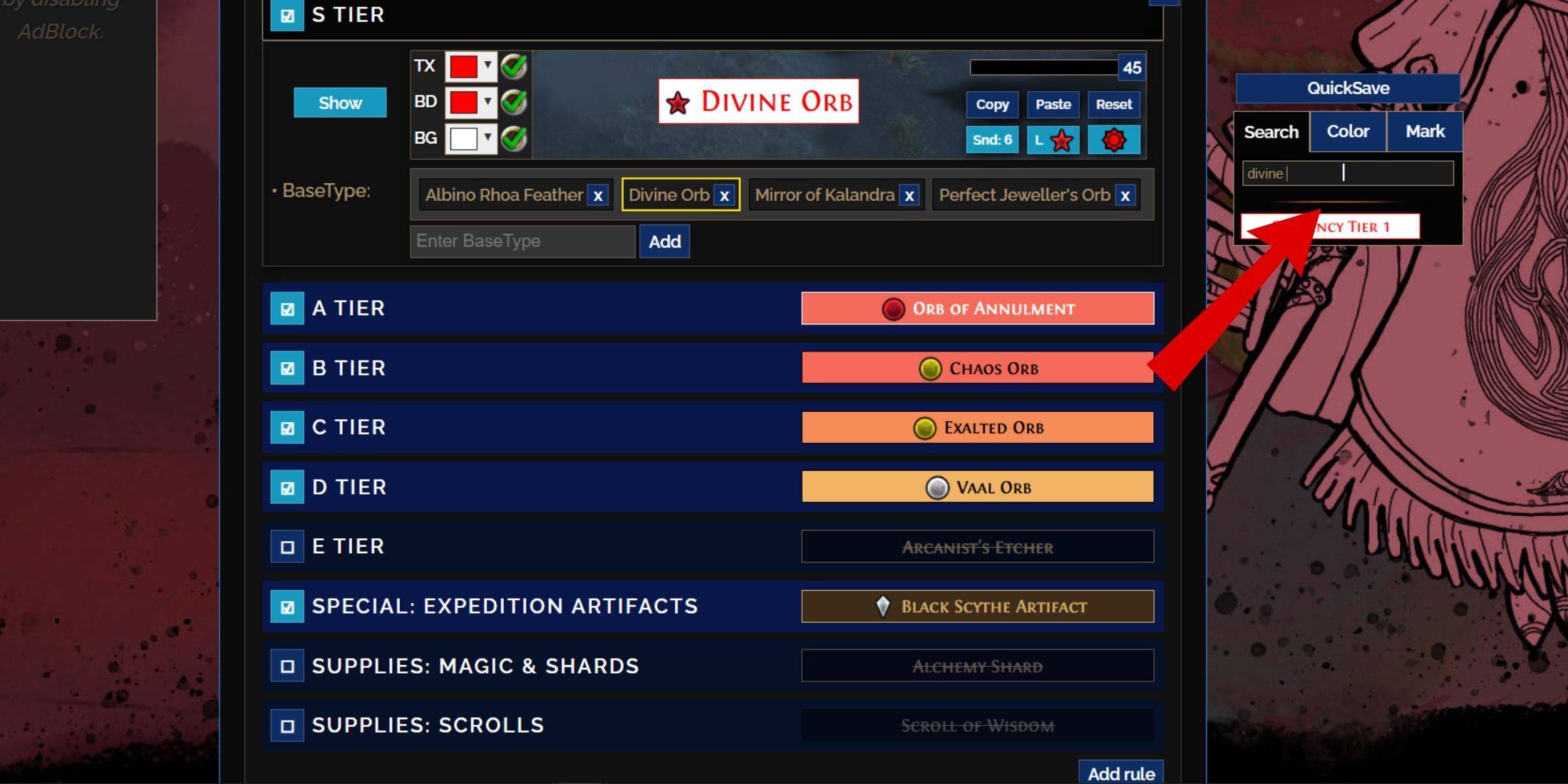
For detailed customization, navigate to the 'Customize' tab next to Overview. Here, you'll find every possible drop in PoE 2 categorized into sections and subsections, offering extensive customization options.
For instance, if you want to modify the appearance of a  Divine Orb when it drops, simply enter "Divine Orb" into the search bar on the right. This will open the S Tier General Currency tab, displaying all possible modifications to the Divine Orb's appearance, with visual representations provided.
To preview the sound of an item dropping in-game, click on the in-game showcase icon.
How to Change Colors and Sounds in FilterBlade
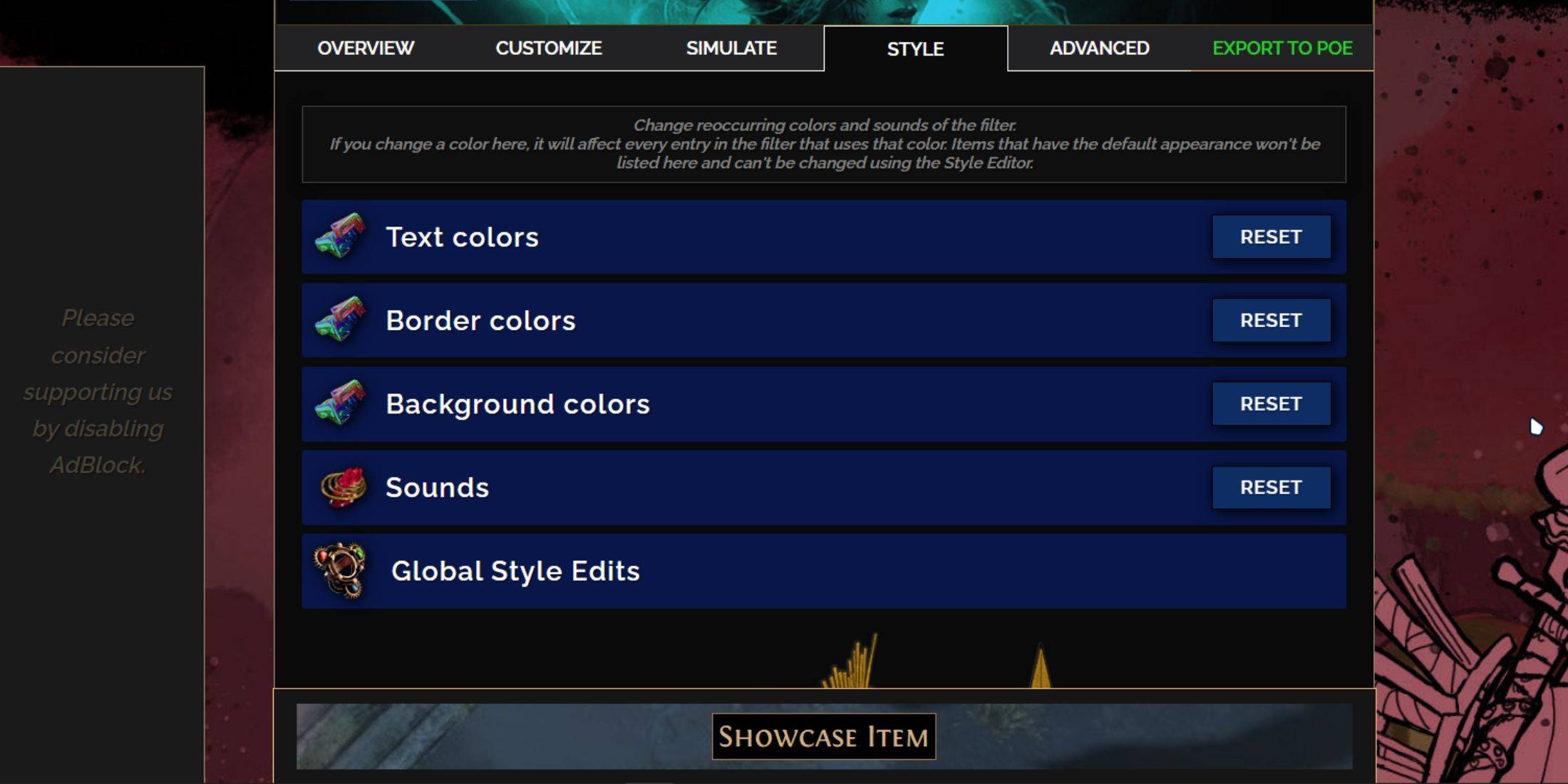
To change colors and sounds for individual or small groups of items, use the 'Customize' tab. For broader, filter-wide changes, head to the 'Styles' tab. Here, you can alter the Text, Border, and Background of dropped items, as well as the audio cues for valuable drops.
Color changes are straightforward, with visual previews showing how items will appear in-game. For individual item modifications, return to the 'Customize' tab.
Sound effects can be customized using the dropdown menu. You can upload your own .mp3 files by selecting 'Custom' or choose from community-added sounds under 'Game & Community Sounds'. Feel free to experiment; you can always revert changes by selecting 'Reset'.
For those new to loot filter customization, exploring public Modules—community-made presets that alter the loot filter visually or audibly—can be a great starting point.